Auto Discover is an augmented analytics discovery tool for auto-analyzing your data and producing machine-built analyses and visualizations. The tool can be used to find interesting correlations and patterns automatically in your data and show views of data that you may not discover on your own.
Access to Auto Discover can be managed from Profiles in the Admin Console.
- A deeper explanation of how Auto Discovery works can be found here.
Accessing Auto Discover
Auto Discover can be triggered from the Discover launch window by selecting a model to trigger a model-wide review and analysis.
Size and Performance
There is no theoretical limit on the number of columns and measures that can be used in a data model for Auto Discover. However, the bigger the footprint and the slower the database in the data model, the longer it will take to render the analysis.
Triggering Auto Discovery
Step 1
Create a new discovery from the App Tabs (yellow arrow below) or App Toolbox.
From the New Discovery panel choose a server and then a database, in order to see its models. Choose a model and click Auto Discovery:
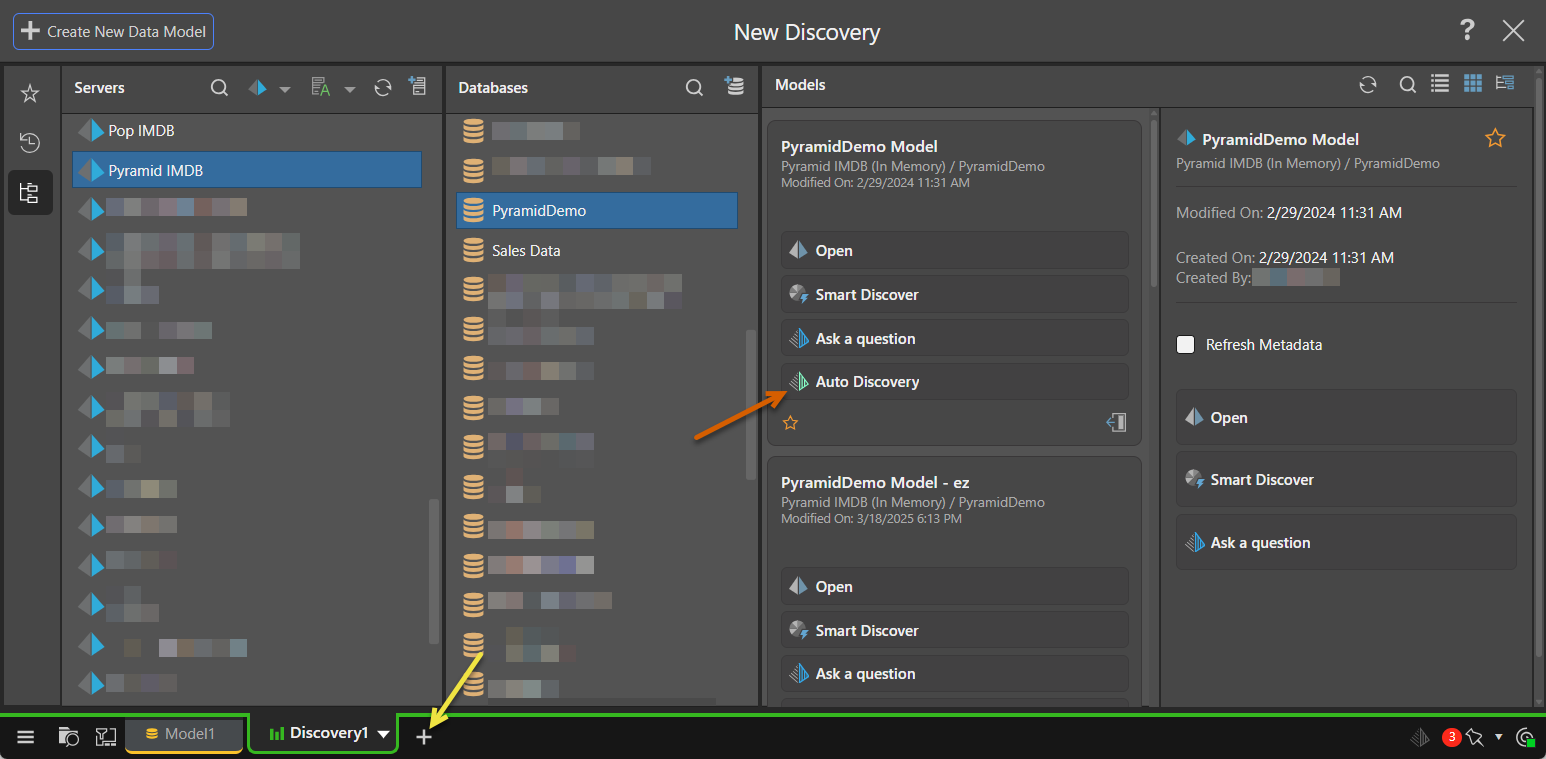
Tip: You can also launch Auto Discover when using Smart Modeling from a file. In this case, you can click Auto Discovery instead of Build in the Smart Model wizard.
Step 2
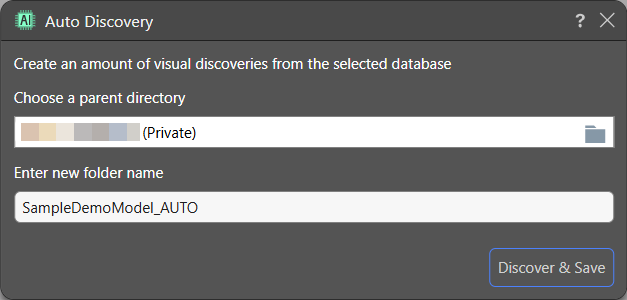
From the Auto Discovery dialog, Choose a parent directory and enter a new folder name, then click Discover & Save:
Step 3
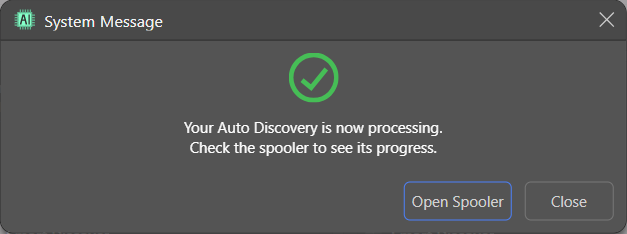
A success pop up opens. Click Open Spooler to see the Auto Discovery progress:
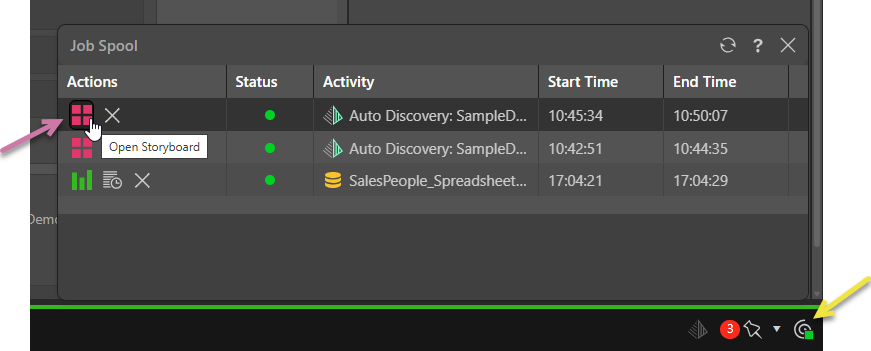
Once the process is complete, click the Present icon in the Job Spooler (purple arrow below) to view the generated discoveries in a presentation.
Alternative
You can also open the Job Spooler from the App Tray at the bottom-right (yellow arrow below):
Step 4
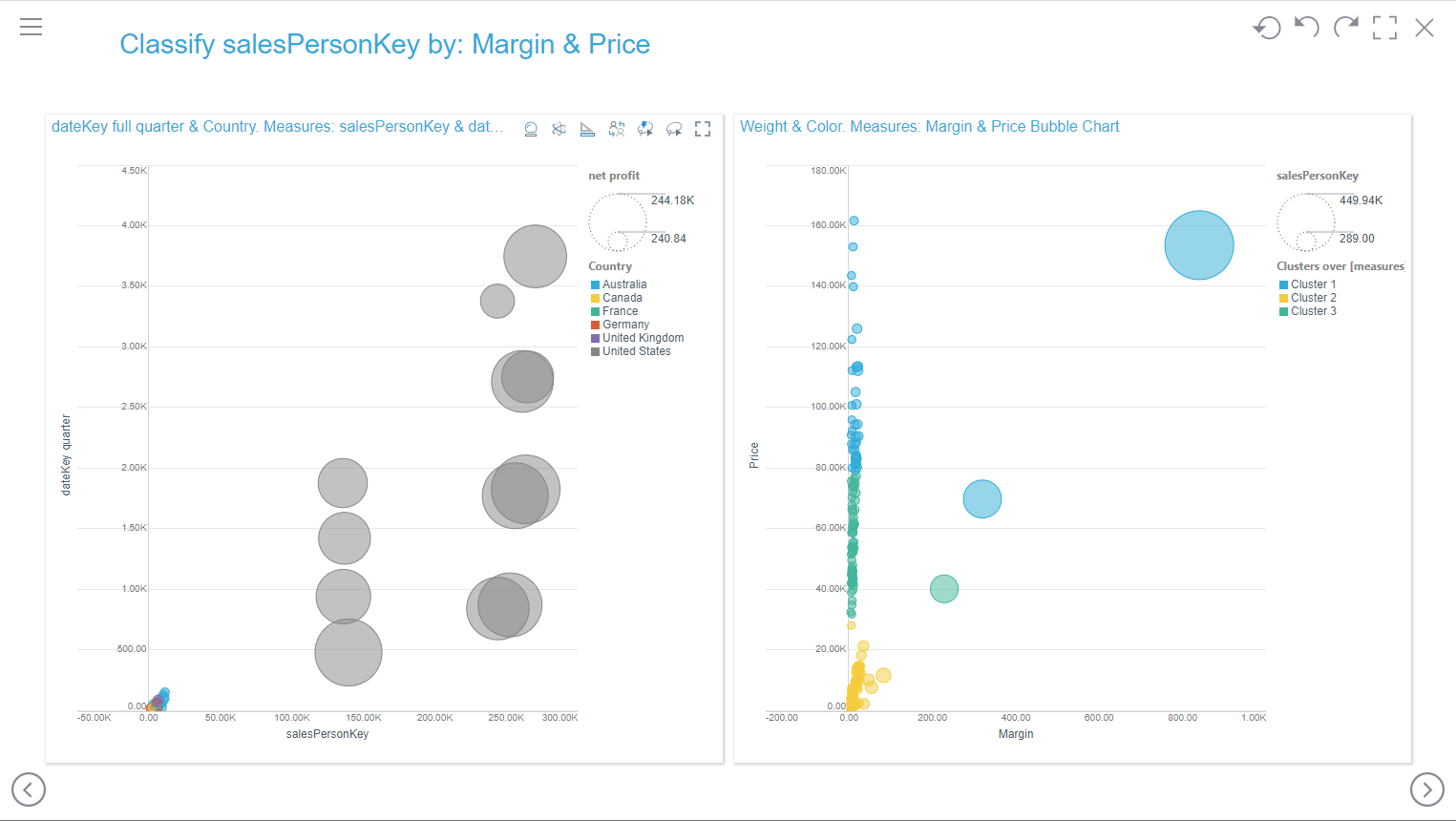
Preview the presentation that holds all the "auto discoveries" that were created.
Step 5
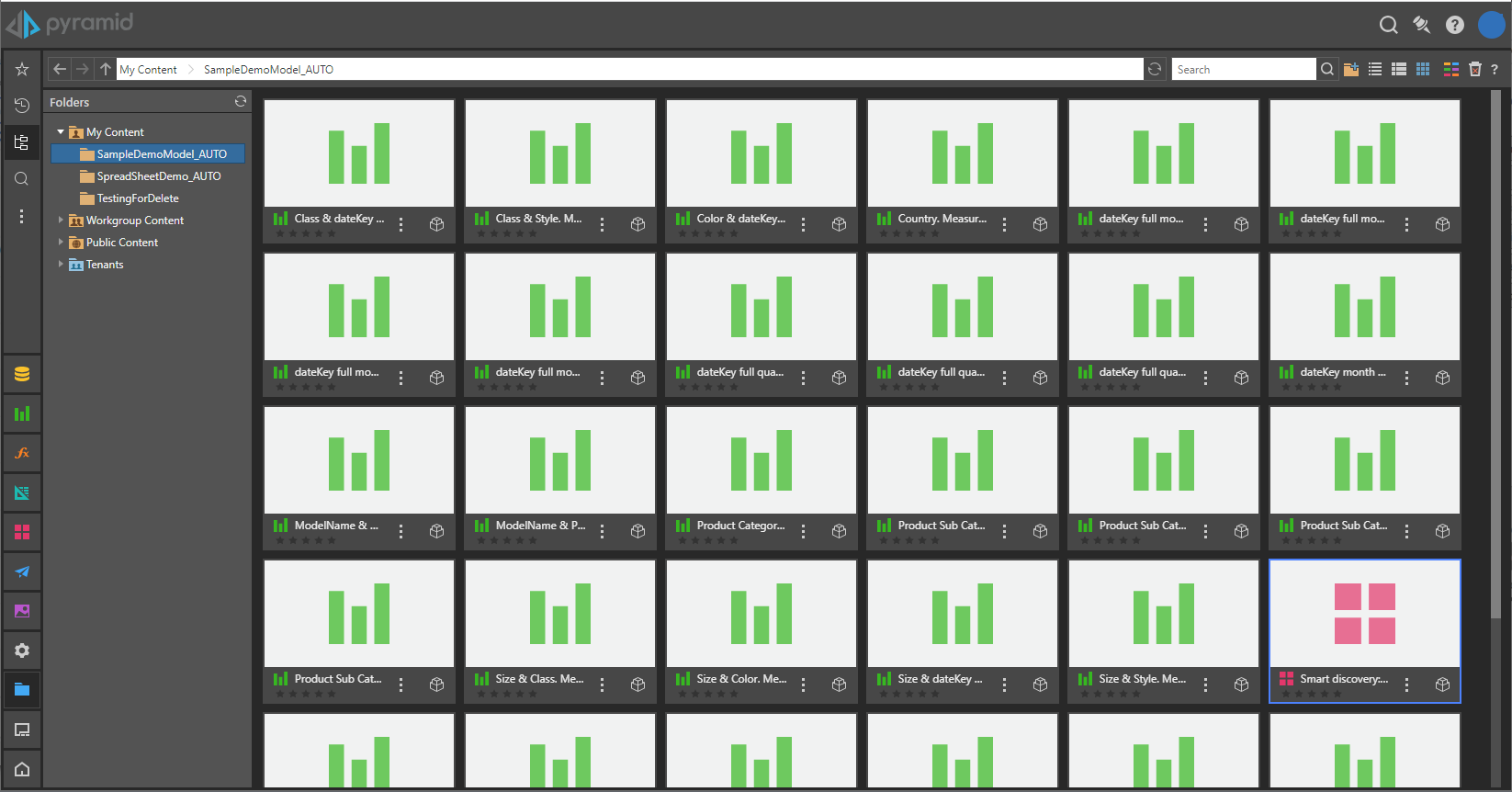
Go to the content folder to see all the Auto Discovery files that were created.